 Nex
NexPRACTITIONER ARTICLE / Security
Deploying Microsoft Defender for Endpoint: Configuration, Validation, and Mistakes to Avoid
A Windows-focused Defender for Endpoint deployment guide covering pilot rings, policy ownership, antivirus modes, ASR, and validation beyond onboarding.
Published
By Phil Kinsley
Published/Updated October 14, 2026. Windows-focused deployment with separate server and cross-platform considerations. Original editorial diagrams and credited Microsoft screenshots.
Microsoft source publication: not confirmed
Source reviewed October 14, 2026. Practitioner analysis is editorial interpretation.
By Phil Kinsley
Published/Updated October 14, 2026. Windows-focused deployment with separate server and cross-platform considerations. Original editorial diagrams and credited Microsoft screenshots.
Microsoft source publication: not confirmed
Source reviewed October 14, 2026. Practitioner analysis is editorial interpretation.
Microsoft Defender for Endpoint is straightforward to onboard. The harder part is establishing which settings are actually enforced, avoiding conflicts with existing security tools, and ensuring the alerts reach someone who can act on them. I have seen devices reported as onboarded while preventive controls remained disabled or were still running in Audit mode. The deployment is not complete until those gaps have been checked.
This guide focuses on Windows 10/11 endpoints managed through Intune, with additional notes for Windows Server, macOS, and Linux. Portal labels can change, so Microsoft documentation is linked in the references rather than relying on an old screenshot as the source of truth.

1. Check licensing, management, and existing protection
Start with an inventory: Windows editions and versions, server operating systems, enrolled and unenrolled devices, existing EDR/antivirus products, and any proxies or network inspection in the path. Verify actual tenant entitlements rather than assuming a Microsoft 365 suite includes the same endpoint rights for every user and server.
Defender for Endpoint Plan 1 covers core endpoint prevention and attack surface reduction. Plan 2 adds EDR and additional investigation, hunting, response, and vulnerability capabilities. Windows Server licensing is separate from ordinary user endpoint entitlement; consider Defender for Servers or the applicable standalone server licenses.
Before deployment, identify the authoritative configuration source for antivirus, firewall, ASR, and EDR settings. A device may still be affected by inherited Group Policy even after it begins receiving Intune configuration.
Supporting reference: Microsoft Defender for Endpoint deployment planning ↗
2. Connect Defender for Endpoint to Intune
- Open security.microsoft.com and go to System > Settings > Endpoints > General > Advanced features. Enable the Microsoft Intune connection and save.
- Open intune.microsoft.com, then Endpoint security > Defender for Endpoint (navigation wording may vary). Confirm that the connection is healthy.
- Review whether device risk will be sent to Intune for compliance policies. Keep the Conditional Access impact separate from the initial onboarding test.
Do not immediately turn device risk into a tenant-wide Conditional Access block. A wrongly targeted compliance policy can lock working users out of corporate applications. Validate risk signals and exclusions first, and test Conditional Access in report-only mode with emergency access accounts excluded as appropriate.
Supporting reference: Configure Defender for Endpoint with Intune (includes Microsoft portal screenshots) ↗

3. Build deployment rings before assigning policies
Keep specialized servers out of an indiscriminate workstation baseline. Their operating requirements differ, and a default remediation or exclusion decision that works for a laptop can disrupt a critical service.
| Ring | Population | Evidence before expansion |
|---|---|---|
| 0 | IT and test devices | Sensor health, antivirus state, policy application |
| 1 | Representative user devices | Line-of-business apps and scripts behave correctly |
| 2 | Wider production | ASR audit review and working alert response |
| Specialized | Servers, development, critical systems | Workload-specific exceptions and rollback plan |
4. Onboard Windows devices
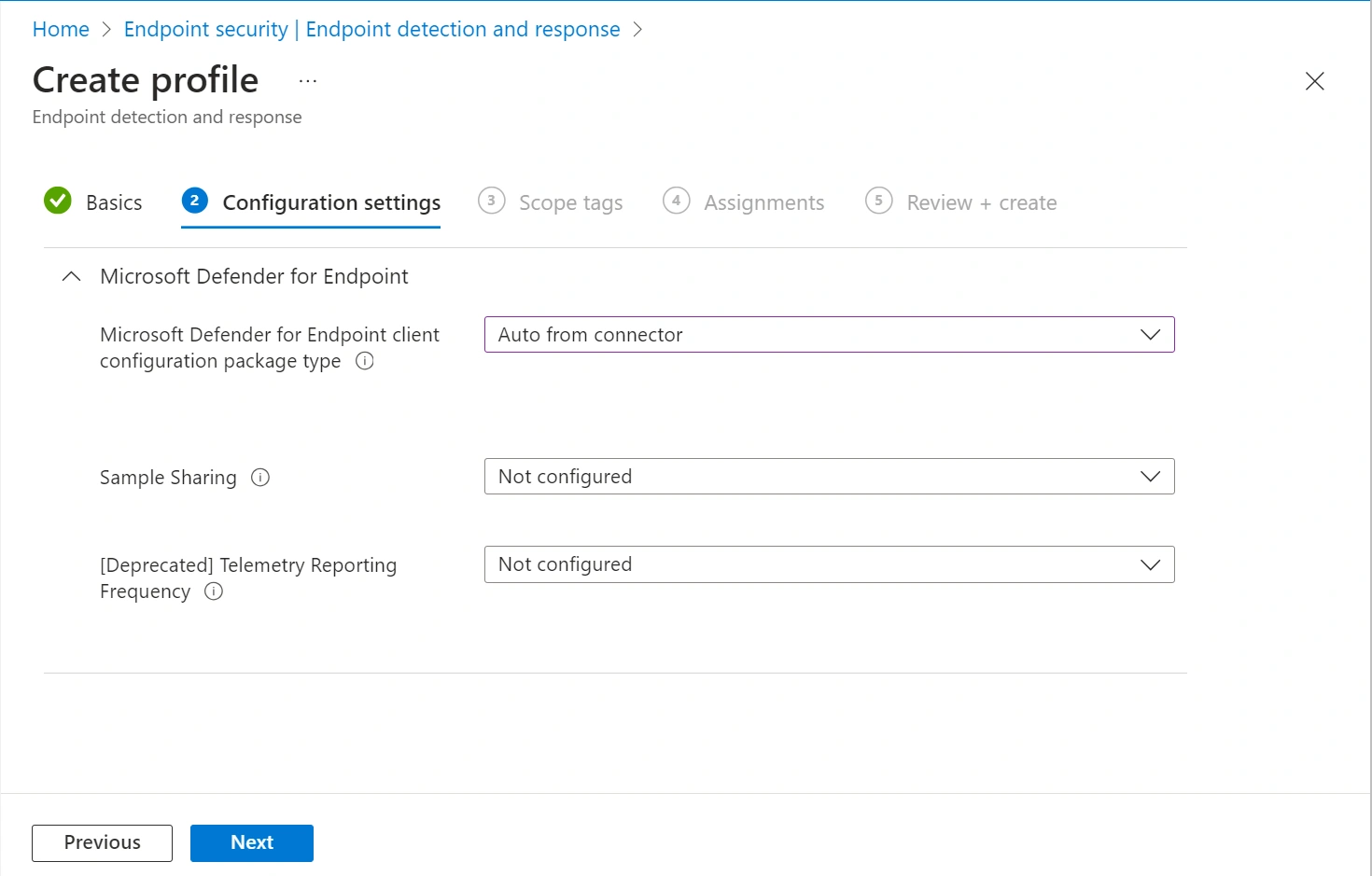
- In Intune, open Endpoint security > Endpoint detection and response > Summary > Create Policy.
- Select Windows and the supported Endpoint detection and response profile.
- Give the policy an explicit name, such as MDE - Windows - EDR - Pilot.
- Select Auto from connector for the Defender for Endpoint client configuration package type when the service connection is available. Assign the custom policy to your pilot device group; the preconfigured-policy shortcut targets All Devices and is not the pilot approach used here.
- Assign the policy to the pilot device group and review deployment results.
- In the Microsoft Defender portal, open Assets > Devices. Confirm the target devices appear, report recently, and show healthy sensor status.
Do not target the same machine with competing onboarding packages from multiple tools. For isolated test devices, the Defender portal offers a local onboarding script, but that method is not intended as the standard enterprise rollout.
Supporting reference: Configure Defender for Endpoint with Intune (includes Microsoft portal screenshots) ↗
5. Configure Defender Antivirus separately
Onboarding the EDR sensor does not necessarily configure the antivirus controls. Under Intune Endpoint security > Antivirus, create an appropriate Windows Defender Antivirus policy and validate the settings on actual devices.
For a quick local check, run:
Get-MpComputerStatus | Select-Object AMRunningMode, AntivirusEnabled, RealTimeProtectionEnabled, BehaviorMonitorEnabled, IsTamperProtectedIf Defender Antivirus is the primary antivirus product, expect active mode. Where another provider is primary, passive mode may be intended, but do not mistake passive EDR telemetry for active antivirus and network protection enforcement. Windows Server coexistence and passive-mode behavior need additional verification.
Supporting reference: Microsoft Defender Antivirus compatibility ↗
| Setting | Suggested initial position | Caution |
|---|---|---|
| Real-time, behavior, cloud protection | Enabled | Check third-party AV coexistence |
| Potentially unwanted applications | Block | Test applications distributed internally |
| Cloud block level | High after pilot | Can affect unfamiliar or unsigned software |
| Signature/platform updates | Automatic, monitored | Confirm update reachability |
| Tamper protection | Enabled through supported management | Use approved troubleshooting methods |
| Exclusions | Minimal and documented | Avoid broad folders or processes |
6. Decide whether EDR in block mode applies
EDR in block mode can allow Defender for Endpoint Plan 2 to remediate certain malicious artifacts when Defender Antivirus is passive behind a third-party antivirus product. It is not a substitute for full active-mode Defender Antivirus protection and does not restore all prevention features.
Review this under Settings > Endpoints > Advanced features in the Defender portal. In a dual-product pilot, verify actual detections, endpoint performance, and vendor support implications rather than assuming two sensors automatically improve coverage.
Supporting reference: EDR in block mode ↗
7. Introduce ASR rules through audit and evidence
Attack surface reduction rules are effective because they block behaviors that are also used by legitimate software. Office macros, remote management tools, installers, and scripts are the usual places where hurried deployments run into problems.
- In Intune, go to Endpoint security > Attack surface reduction and create a Windows ASR rules profile.
- Apply Microsoft's standard protection rules as documented; put other relevant rules in Audit mode for the pilot.
- Review ASR events in the Defender reporting and hunting experiences and speak with the application owners.
- Move supported rules to Block or Warn, then expand to the next ring only after reviewing the results.
- Use rule-specific exceptions when justified, rather than switching off protection globally.
A rule left in Audit mode indefinitely is not preventive protection. Set a review deadline and an owner, otherwise the pilot quietly becomes the production configuration.
Microsoft’s standard protection set comprises blocking abuse of exploited vulnerable signed drivers, credential stealing from LSASS, and persistence through WMI event subscription. Check operating-system applicability and supported modes per rule. The LSASS rule does not support Warn mode and may be unnecessary where LSA protection is already enabled.
Supporting reference: Attack surface reduction deployment ↗
Supporting reference: ASR rules and exclusions ↗
Supporting reference: ASR rule support and standard protection rules ↗
| Rule family | What to test |
|---|---|
| Office child processes and executable content | Macros, add-ins, document-driven applications |
| Credential theft from LSASS | Authentication utilities and older agents |
| PSExec/WMI process creation | RMM tools, software deployment, admin scripts |
| Vulnerable signed drivers | Legacy drivers and hardware tooling |
8. Network protection and web content filtering
Network protection is useful for supported non-browser processes as well as browser traffic, but its enforcement depends on platform support, active Defender Antivirus, and the configured mode. Start with Audit where compatibility is uncertain, examine events, and then move to Block where justified.
Do not assume that web categories configured in the portal are being blocked on a device whose antivirus is passive. Validate with supported test procedures rather than judging configuration solely by successful policy assignment.
Supporting reference: Network protection ↗
9. Tamper protection and effective settings
Tamper protection is normally desirable, but it can make troubleshooting confusing because local attempts to change protected settings may appear to work while enforcement remains unchanged. Use Microsoft-supported troubleshooting mode rather than registry changes or unsupported workarounds.
When settings conflict, look at the device's effective configuration and policy source rather than assuming the most recently deployed Intune profile has won. Configuration Manager, Group Policy, Intune, and Defender security settings management can overlap.
Supporting reference: Tamper protection ↗

10. Keep exclusions narrow
An exclusion request should explain which component blocked which activity. An antivirus exclusion, an ASR rule-specific exclusion, and a Defender indicator are not interchangeable; some process exclusions can reduce inspection beyond the single problem an administrator intended to solve.
- Collect the file path, process, event, rule ID, and application behavior before changing policy.
- Check built-in and published workload exceptions, especially for Windows Server roles.
- Prefer one rule-specific exception over a directory-wide antivirus exclusion.
- Document the owner, reason, test evidence, and date for review or removal.
- Avoid excluding entire disks, user profiles, system tools, or script interpreters.
Supporting reference: ASR rules and exclusions ↗
Supporting reference: Defender exclusions ↗
11. Address servers and devices not enrolled in Intune
For eligible servers and other supported devices not enrolled in Intune, Microsoft Defender for Endpoint security settings management can apply supported endpoint security policies. Configure the enforcement scope carefully and pilot using device tags, including MDE-Management where supported.
Azure Arc and Defender for Servers may also be relevant to the server estate, but they are not the same thing as Intune enrollment or the Defender for Endpoint sensor. Treat operating-system support, onboarding method, policy management, and license coverage as separate decisions.
Supporting reference: Security settings management ↗
12. Configure response ownership and automation
Microsoft retired the separate manual Automated Investigation and Response experience on September 1, 2026. Its protection and response capabilities remain part of the Defender stack, but older tutorials that instruct analysts to start a standalone AIR investigation should not be followed unchanged.
Use device groups and permissions to determine who can isolate devices, take live response actions, approve remediation, and manage indicators. Review automation levels in the relevant device group settings and check the Action center for actions requiring attention.
I would use different operational safeguards for an employee laptop and an application server. A remediation action on a critical server can be correct from a malware perspective and still have a significant availability impact.
Supporting reference: Automated remediation configuration (September 2026 changes) ↗
13. Validate the deployment, not just the onboarding count
Review representative devices across each ring and check the actual result rather than the policy dashboard alone.
- Sensor reporting and last-seen time; Defender Antivirus active/passive mode and protection status.
- Effective settings for antivirus, firewall, ASR, network protection, and tamper protection.
- Vulnerability results and security intelligence/platform update health.
- Microsoft-supported test detection reaches the expected incident queue and notification path.
- SOC staff can investigate, contain, and reverse or approve actions using the permissions assigned.
For a Windows endpoint, the Get-MpComputerStatus output is a useful local cross-check, but it does not replace the Defender device investigation view, relevant event logs, or live validation of alert routing.

14. Mistakes that deserve a second look
| Common mistake | Consequence | Corrective check |
|---|---|---|
| Onboarded equals protected | Preventive rules remain off | Review effective settings and protection mode |
| ASR left in Audit | No actual block | Set decision date and named reviewer |
| Defender passive behind other AV | Some controls cannot enforce | Verify prerequisites and tests |
| Broad antivirus exclusion | Hidden protection gap | Minimize and document exceptions |
| Multiple policy authorities | Conflicting setting values | Map GPO, ConfigMgr and Intune ownership |
| Immediate CA enforcement | Legitimate user lockout | Pilot report-only and emergency access |
| Automatic remediation on sensitive servers | Availability disruption | Group devices and agree response authority |
Conclusion
I would sign off a Defender for Endpoint rollout when the intended devices are present, the protections are demonstrably active, application exceptions have been tested, and the security team knows what it is expected to do with the alerts. Merely deploying the agent and seeing a healthy connection is not enough. Most of the costly problems happen at the boundaries between existing antivirus products, inherited policies, business applications, and the people responding to detections.
Primary source
Microsoft Defender for Endpoint deployment planning ↗Official Microsoft US English source. Historical announcements describe their original period; consult current documentation before implementation.
Further sources
Onboard devices to Microsoft Defender for Endpoint (includes Microsoft portal screenshot) ↗
Configure Defender for Endpoint with Intune (includes Microsoft portal screenshots) ↗
Microsoft Defender Antivirus compatibility ↗
Attack surface reduction deployment ↗
Security settings management ↗
Automated remediation configuration (September 2026 changes) ↗
Continue reading
How to Deploy Microsoft Defender for Servers: Plan Selection, Onboarding, and Validation ↗