 Nex
PRACTITIONER ARTICLE / Security
Microsoft 365 E3 Security Baseline: The Access and Device Controls I Expect
My Microsoft 365 E3 baseline for Conditional Access, Intune compliance, encryption, updates and mobile access, plus the risk policies I add with E5.
Published
By Phil Kinsley
By Phil Kinsley
At our October 29 Nexlinks User Group meeting, we spent a good part of the conversation discussing what a minimum Conditional Access and device compliance configuration should look like. It is a question I also encounter at work, usually in environments that own the licensing but have not consistently enforced the controls.
For Microsoft 365 E3, my starting point is MFA, blocked legacy authentication, compliant devices for managed access, enforced encryption, managed updates, and app protection for supported mobile applications. Microsoft 365 E5 adds identity and sign-in risk policies, although E5 is not the only way to license those capabilities.
What concerns me is an organization investing in endpoint protection and management, then allowing the same information to be downloaded from a personal laptop it knows nothing about. There can be legitimate exceptions, but I want those to be deliberate decisions with an owner and a review date.
This is the baseline I would work toward, with a staged rollout that proves access behaves as intended.
Start with the right license and access model
This article concerns Microsoft 365 E3, not Office 365 E3 on its own. Microsoft 365 E3 includes Entra ID P1 and Intune Plan 1; core Conditional Access is a P1 capability. Risk-based policies need the relevant Identity Protection entitlement, such as Entra ID P2 included in Microsoft 365 E5.
I would separate managed Windows and macOS access from any approved mobile BYOD arrangement before building the policies. A compliant personal device is not necessarily a corporate-owned device, and app protection does not establish whole-device compliance. If ownership matters, enforce enrollment restrictions and review ownership records as well.
The table below is a deployment checklist, not a claim that every setting is enabled by buying E3.
Supporting reference: Microsoft Entra licensing ↗
| Area | What I expect to demonstrate |
|---|---|
| Identity | MFA enforced, phishing-resistant administrator access, legacy authentication blocked. |
| Managed devices | Compliance evaluated and required for the intended users, resources and clients. |
| Endpoint configuration | Encryption, recovery access, antivirus, firewall and supported OS requirements configured and verified. |
| Updates | Staged deployment, maintained build thresholds and a process for failed updates. |
| Mobile BYOD | Approved applications protected without unintentionally conflicting with device-compliance policies. |
| Risk when licensed | Separate sign-in-risk and user-risk policies with usable remediation. |
Define compliance, then configure the endpoint
In Intune, create and assign a compliance policy for each supported platform. For Windows, I would assess encryption, Secure Boot and device integrity, firewall and antivirus status, approved OS builds, and suitable sign-in and screen-lock requirements. Use the settings supported by each platform rather than copying the Windows list into a macOS policy.
Set Mark devices with no compliance policy assigned as to Not compliant. The default can treat an enrolled device without an assigned compliance policy as compliant, which is not the decision I want Conditional Access relying on.
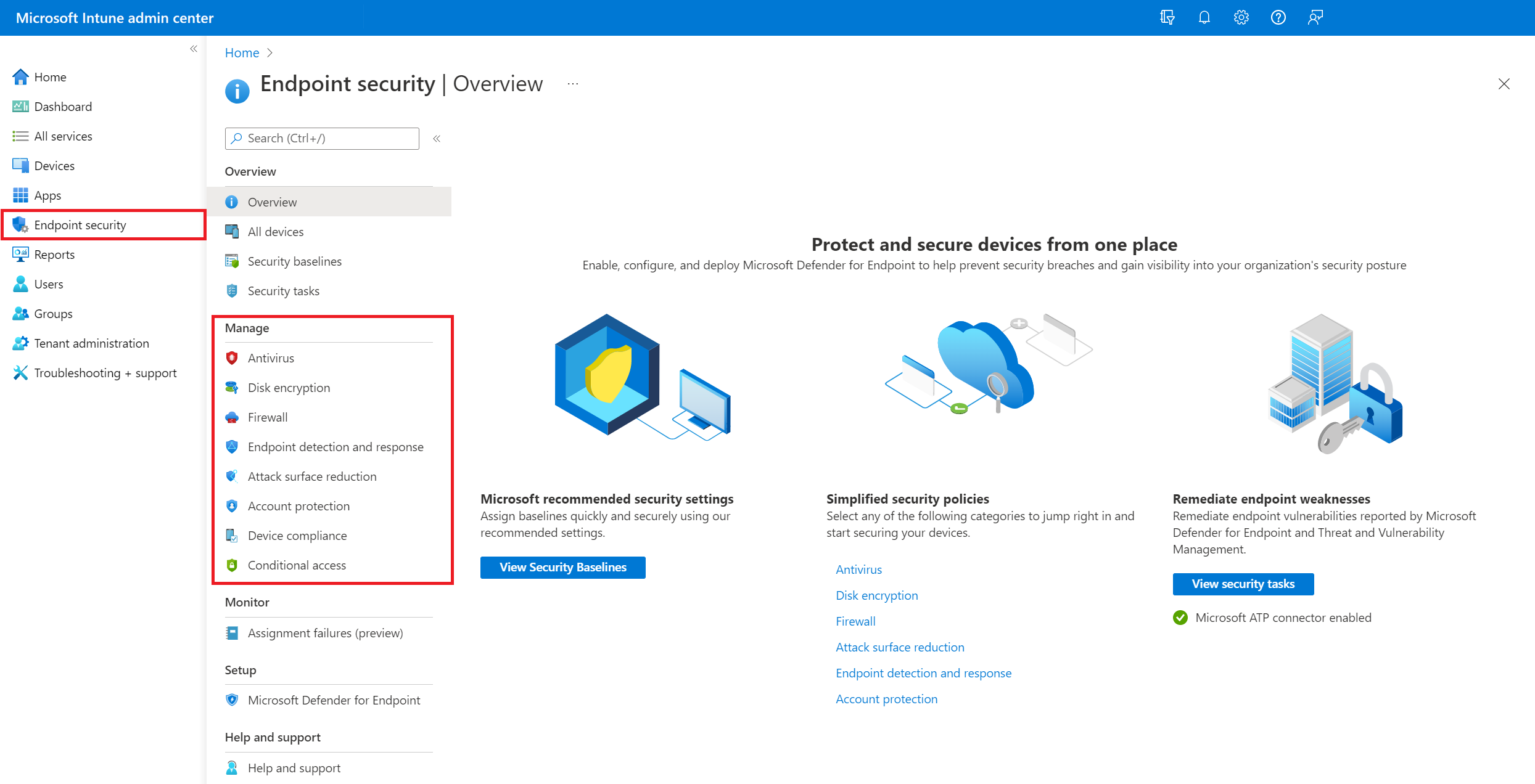
Compliance evaluates state; it is not a substitute for configuring the settings. Under Endpoint security > Disk encryption, deploy BitLocker policies for Windows and FileVault for managed Macs. Define recovery-key escrow, who may retrieve keys, and how recovery access is audited and keys rotated. Verify those outcomes on a test device rather than assuming a successful assignment proves encryption and recovery both work.
Device health reporting also has timing limits. Windows BitLocker health attestation is measured at boot, so a newly encrypted device may need a restart before its compliance result reflects the change. Review conflicting policies and the actual failed setting before creating an exception.
Supporting reference: Intune compliance policy settings ↗
Supporting reference: Microsoft Learn: screenshot source ↗
Manage updates before enforcing the patch threshold
Microsoft 365 E3 includes Windows Autopatch eligibility through Windows Enterprise E3, subject to service and device prerequisites. I would use staged deployment, beginning with a representative test group and expanding after checking application compatibility and update failures.
Autopatch does not cover every device merely because it appears in the tenant. Check supported Windows versions, Intune enrollment or co-management, ownership, connectivity, and registration. Microsoft's prerequisites exclude Windows BYOD from Autopatch registration.
Use Intune's minimum OS version or valid OS build ranges to reflect approved patch levels. Those thresholds need maintenance as releases change; they are not automatically a rolling rule that every device must be patched within a set number of days. Align noncompliance timing with the deployment schedule so that a device is not blocked before its update is due, while giving repeated failures an owner and a deadline.
Supporting reference: Windows Autopatch prerequisites ↗
Make MFA and device requirements work together
Require MFA for ordinary user access and phishing-resistant authentication for privileged administration, with methods registered before enforcement. Keep properly secured emergency accounts available and monitored, and test recovery independently of an administrator's everyday laptop.
Block legacy authentication using the Exchange ActiveSync clients and Other clients client-app conditions with Block access. Review sign-in logs for remaining dependencies first, then address printers, scanners, and older applications rather than letting exceptions become permanent. Review service-specific authentication settings too; a user Conditional Access policy does not govern every application or workload identity.
For the managed access model, use Require device to be marked as compliant. Confirm at least one test device is compliant before enforcement, then pilot users, resources, browsers, and desktop applications. Device identity is not conveyed by every client or authentication flow, so a working browser test alone is insufficient.
MFA and device compliance should both apply where that is the intended baseline. Separate applicable policies are cumulative. Within one policy, Require one of the selected controls means either control can satisfy that policy; selecting MFA or compliance would not enforce both.
Guest access needs its own design, including whether to trust a partner tenant's compliance claims. Keep exceptions narrow and time-bound, and do not treat these controls as protection for files that have already been downloaded.
Supporting reference: Conditional Access grant controls ↗
Give mobile BYOD an explicit policy design
For supported iOS/iPadOS and Android applications, create Intune app protection policies under Apps > Protection. I would require appropriate app access protection, restrict copying and saving work data into personal locations, define supported OS and app versions, and test selective removal of work data.
Use Conditional Access's Require app protection policy control for the supported mobile access scenario, with the required broker and application configuration. A policy assigned in Intune does not prove every app or browser path is protected.
The important implementation detail is how this interacts with device compliance. If another applicable policy still requires a compliant device for every mobile sign-in, an unenrolled phone does not gain access simply because Outlook has app protection. Scope the approved BYOD path deliberately while keeping MFA and the intended data restrictions. For enrolled corporate phones, compliance and app protection can complement each other.
I still prefer managed, compliant access where the information warrants it. An approved app-only arrangement should explain what remains outside the organization's control.
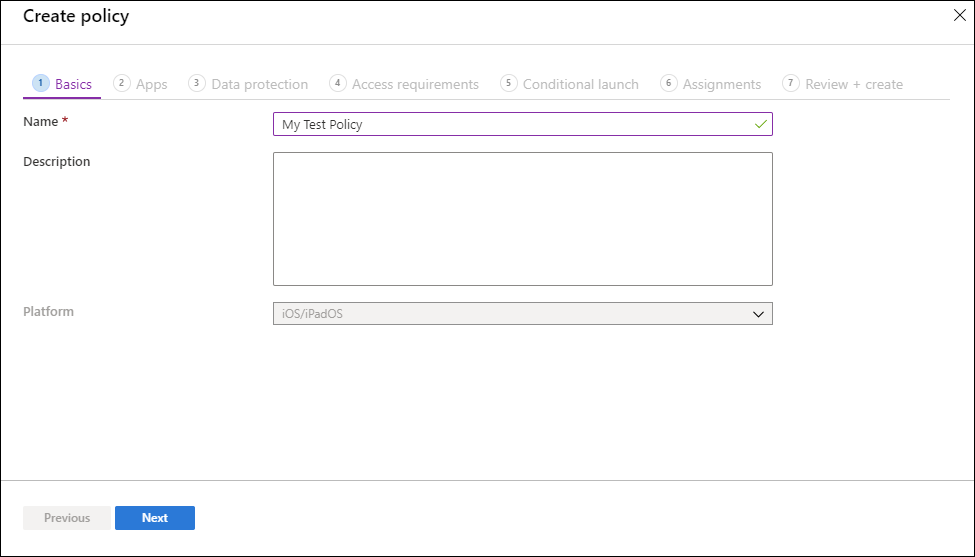
Supporting reference: Create app protection policies ↗
Add separate risk policies when licensed
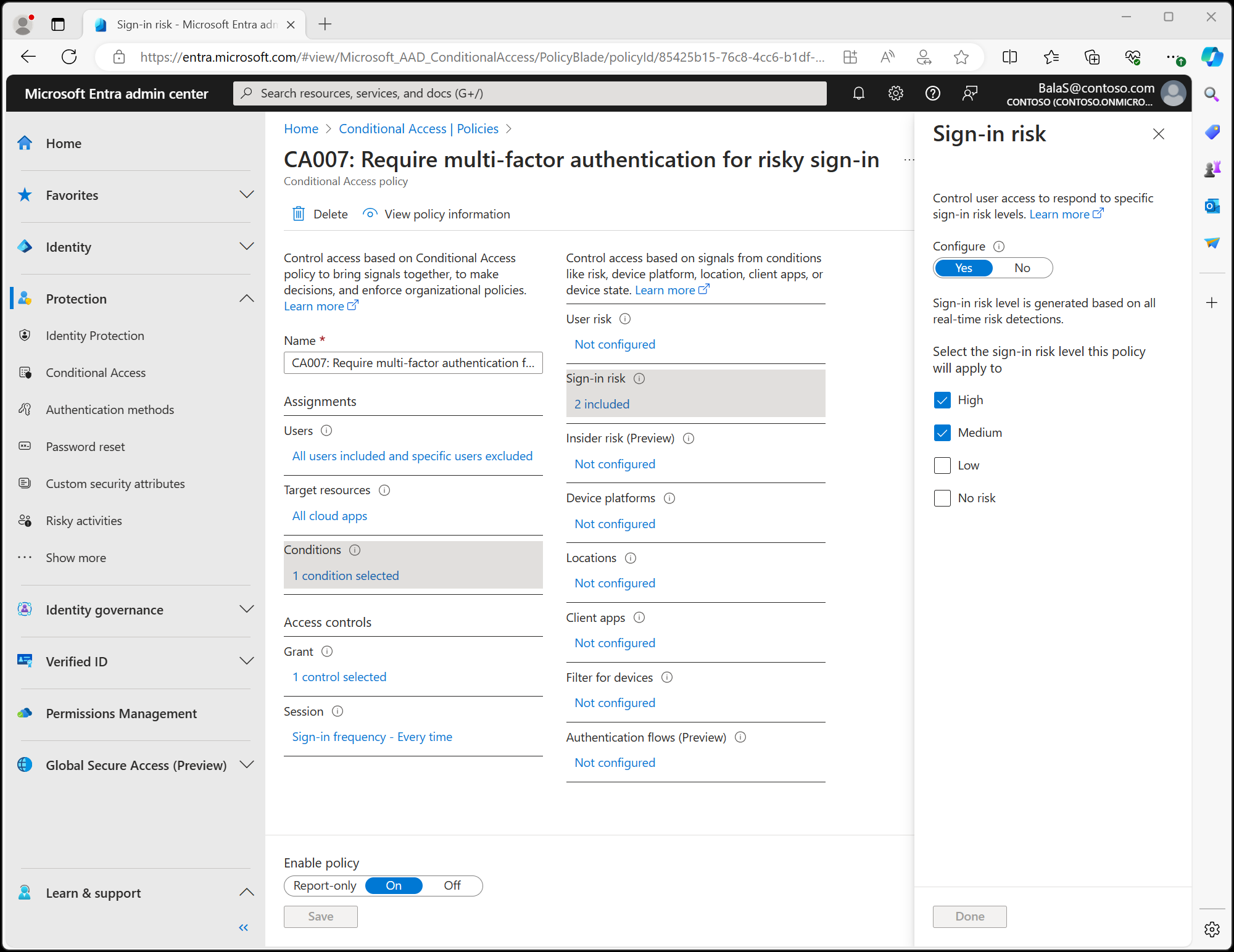
With the appropriate Identity Protection licensing, I would add two separate policies:
- Medium and high sign-in risk: require the appropriate MFA authentication strength and set sign-in frequency to Every time, following Microsoft's guidance for the authentication methods in use.
- High user risk: use Require risk remediation and validate the recovery prerequisites. Microsoft automatically adds authentication strength and every-time reauthentication to that grant.
Sign-in risk concerns the authentication attempt; user risk concerns the identity. Microsoft advises against combining those conditions in one policy. Users must already be registered for the required authentication methods, and hybrid password recovery needs supported password writeback.
Risk remediation is not identical for every user. Password-based scenarios can require a secure password change, while passwordless scenarios can involve session revocation and reauthentication. The remediation grant is not supported for external and guest users, so their response needs separate handling.
These controls add useful decisions to the E3 baseline. They do not remove the need for device controls or make every compromise detectable.
Supporting reference: Risk remediation and external-user limitations ↗
Test access and record the result
Use report-only mode where supported, review the Conditional Access What If results and sign-in logs, then test enforcement with a small group. Report-only analysis does not demonstrate that a real access attempt was blocked.
My test list would include a compliant corporate laptop, an unmanaged laptop, a managed device that fails a compliance rule, an out-of-date endpoint, a legacy client, a guest, and the approved mobile BYOD scenario. Check both successful access and expected denial, including the policy and device identity reported in the matching sign-in event. Test emergency access as part of the rollout.
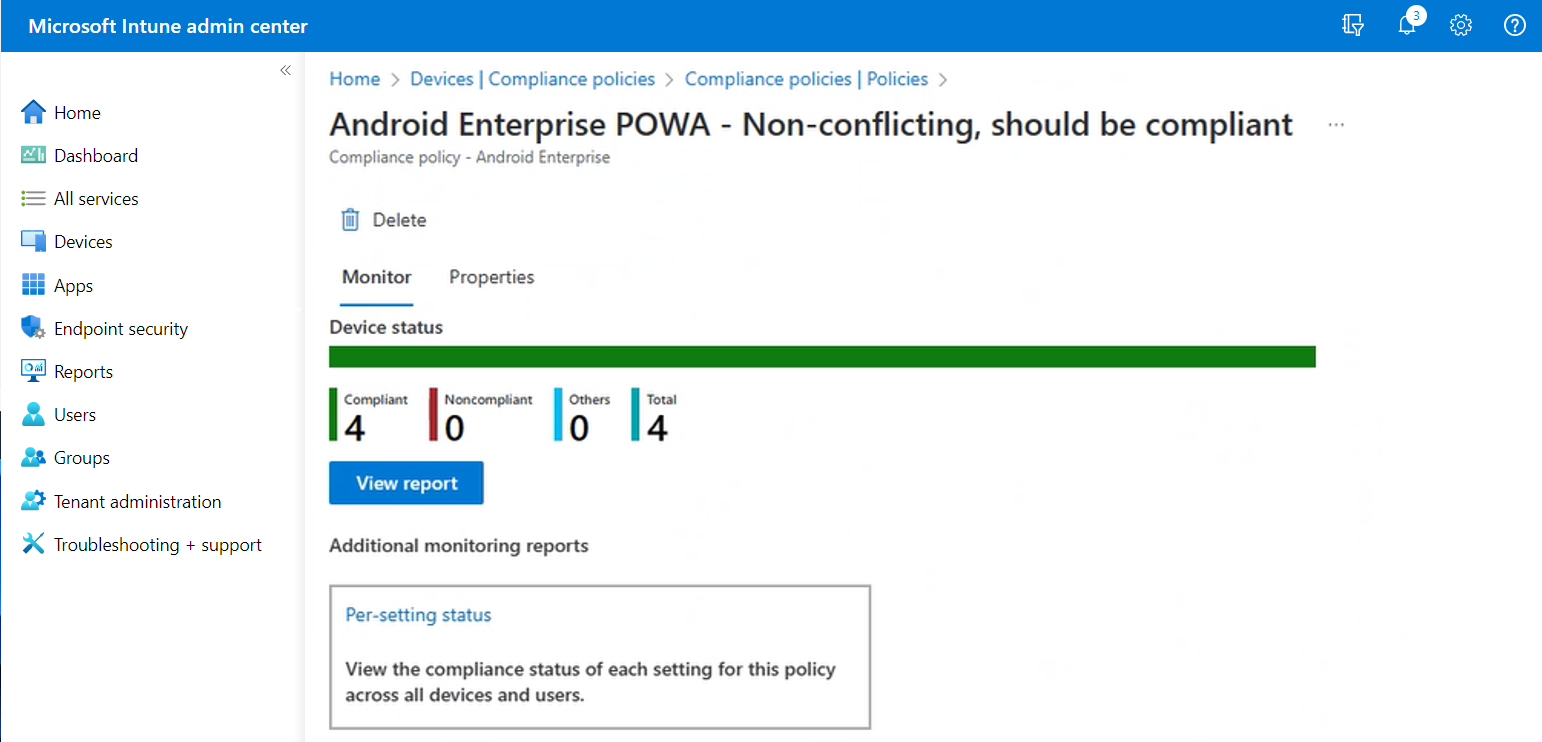
Compliance status reflects evaluation and reporting, and access changes are not universally instantaneous. Record the last check-in, grace period, session behaviour, and time at which the expected decision occurred. If the device was blocked for an unrelated reason, that does not validate the control being tested.
Supporting reference: Monitor compliance results ↗
Use the collector to examine coverage
My Intune Endpoint Readiness Collector gathers Microsoft Graph evidence into normalized JSON for a separate assessment workflow. It covers areas including compliance, configuration, updates, Conditional Access, app protection, available device status, and licensing.
From the downloaded collector directory, the README's example is:
.\Invoke-IntuneReadinessCollection.ps1 -TenantId 'contoso.com' -OutputPath .\runs\tenant-evidence.jsonReplace the example tenant, use an appropriately authorized account, and review the requirements and permissions first. This collects evidence; it does not change tenant configuration or calculate readiness scores. Some collection uses Graph beta endpoints, and excluding those queries reduces coverage.
AI can help review the JSON against a defined baseline, but failed or incomplete queries must remain missing evidence rather than becoming findings that a control does not exist. Check assignments and observed enforcement before accepting a conclusion. The output can retain sensitive tenant, device, and user details despite selected identity fields being omitted by default, so use an approved analysis environment.
For me, the useful result is knowing which devices and users are covered, which exceptions remain, and whether the expected access decision actually occurred. Purchasing the license is the beginning of that work.
Primary source
Microsoft Entra licensing ↗Further sources
Intune compliance policy settings ↗
Intune endpoint security policies ↗
Windows Autopatch prerequisites ↗
Conditional Access grant controls ↗
Create app protection policies ↗
Continue reading
Microsoft Entra Suite vs. Entra ID P2: What Are You Actually Paying For? ↗
Deploying Microsoft Defender for Endpoint: Configuration, Validation, and Mistakes to Avoid ↗
Managing Windows Server Security with Intune, Defender, and Azure Arc ↗